
How to Export Your Huckleberry Data
To export your Huckleberry data, open the child profile in the Huckleberry app, scroll down, tap Export tracking data as CSV and then Got it! Email it. Huckleberry emails a download link to your account address, and the link works for 24 hours. You get one CSV file per child, which you can keep as a backup or import into another app such as Vivi Baby.
We checked Huckleberry’s help center on 2026-10-07. The steps below follow its own article, and the import steps follow Vivi Baby’s import screen.
Before you export
Check four things first.
- Check the email address on your Huckleberry account. That is where the download link goes.
- Count your children. Each child has a separate export, so a family with twins requests two files.
- Plan to open the email the same day. The link stops working after 24 hours. You can ask for a new one, but it is easier to save the file right away.
- You do not need to cancel anything first. Huckleberry’s help center says that if you cancel a subscription, your account and logged data stay, and the free trackers for sleep, feeding and diapers keep working. Its pricing page lists logging under the Free plan, and its export article does not mention a paid plan.
If you plan to delete your Huckleberry account, export first. Huckleberry says deletion is permanent and it cannot restore your data afterwards.
Step by step: export from Huckleberry
These steps come from Huckleberry’s help article “Can I export my data from the app?”.
- Open the Huckleberry app on your phone.
- Tap the child profile icon in the menu bar.
- Scroll down the screen and tap Export tracking data as CSV.
- Tap Got it! Email it.
- Open the email Huckleberry sends to the address on your account and tap the download link. The link is valid for 24 hours.
- Save the CSV file somewhere you will find it again. On an iPhone, the Files app with iCloud Drive works well.
- Switch to your next child and repeat.
If the link has expired, go back to step 2 and request a new one. Rename each file with your child’s name when you save it. The files look alike, and Vivi asks you which child a file belongs to.
What’s in the CSV (and what isn’t)
Huckleberry describes the file as all your logged data for your child, including sleep, feeding and diapers. It is a plain spreadsheet file, so it opens in Numbers, Excel or Google Sheets.
The Huckleberry files Vivi Baby reads have one row per entry and eight columns:
| Column | What it holds |
|---|---|
| Type | The kind of entry, such as sleep, feed or diaper |
| Start | When the entry started |
| End | When it ended, if it has an end |
| Duration | How long it lasted. Some types use it for other details |
| Start Condition | Details that depend on the type, for example how your baby fell asleep or which food was offered |
| Start Location | More details, for example breast, bottle or where your baby slept |
| End Condition | More details, for example how your baby woke up, a bottle amount or what was in the diaper |
| Notes | The text you typed |
Some things are not in the file:
- Your child’s name or birth date. One file is one child, but nothing in it says which one.
- Who logged each entry. There is no caregiver column.
- A time zone. Times are plain local times. If you tracked while travelling, keep in mind which time zone each stretch was in.
Huckleberry’s article describes the export as logged tracking data. It does not say that photos, Berry chats, SweetSpot predictions or sleep plans are part of it, so don’t count on the CSV to keep them.
Import into Vivi Baby
Vivi Baby is a newborn and parents companion app for iPhone (iOS 18 or later) and Apple Watch (watchOS 26 or later). It reads a Huckleberry CSV directly, so you keep one continuous history. Huckleberry’s help center says it does not support importing data into Huckleberry, so this works in one direction only.
Open the import
- Save the CSV where your iPhone can reach it.
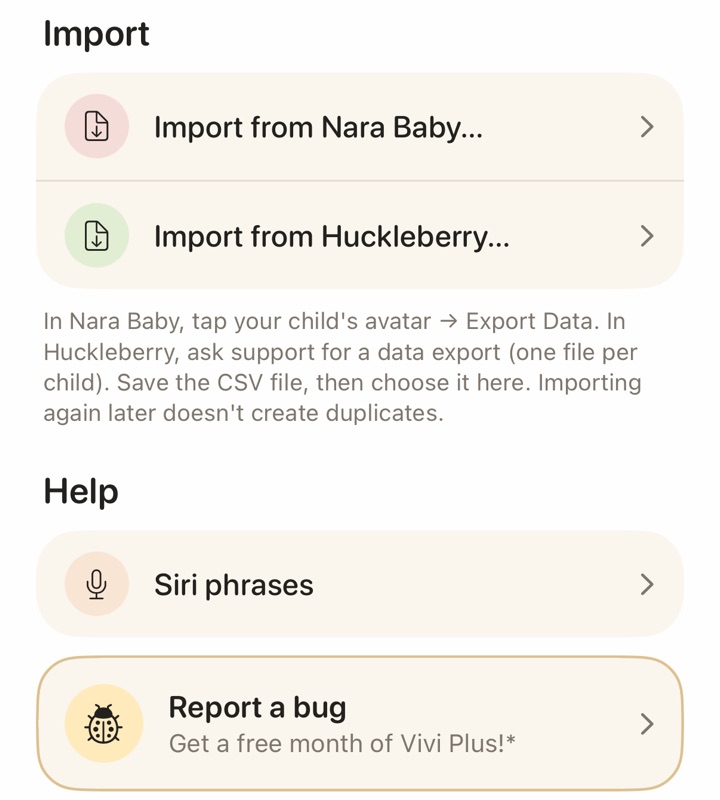
- In Vivi Baby, open Preferences and find the Import section.
- Tap Import from Huckleberry…, then choose the file. If you are setting up Vivi for the first time, the same option is on the import step of setup.
Fill in what the file leaves out
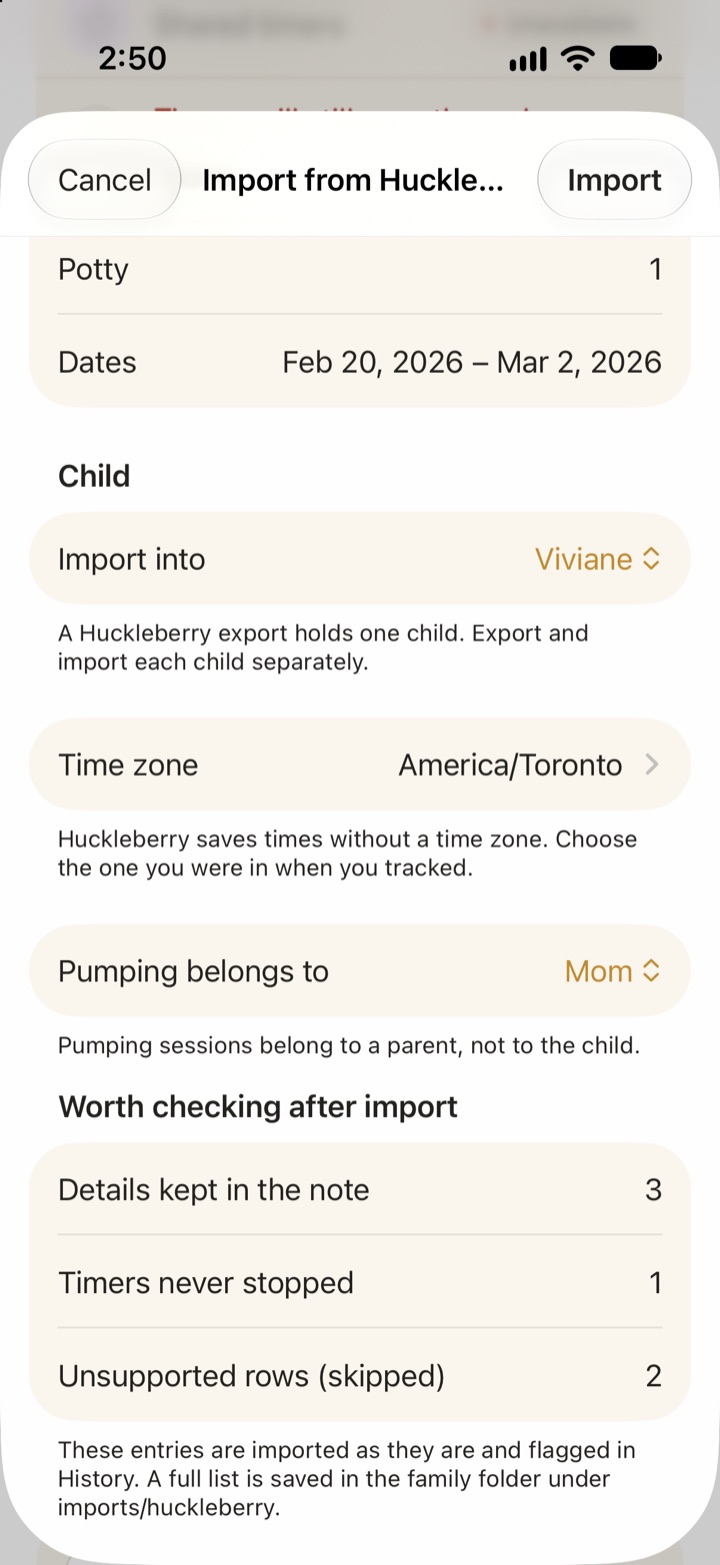
The file has no child, caregiver or time zone, so Vivi asks for them.
- Child: import into a new child or one you already have. A Huckleberry export holds one child, so import each child separately.
- Time zone: choose the one you were in when you tracked. Your phone’s current time zone is at the top of the list.
- Pumping: these sessions belong to a parent, not to the baby. Choose which parent they belong to, or choose not to import them.
Read the preview
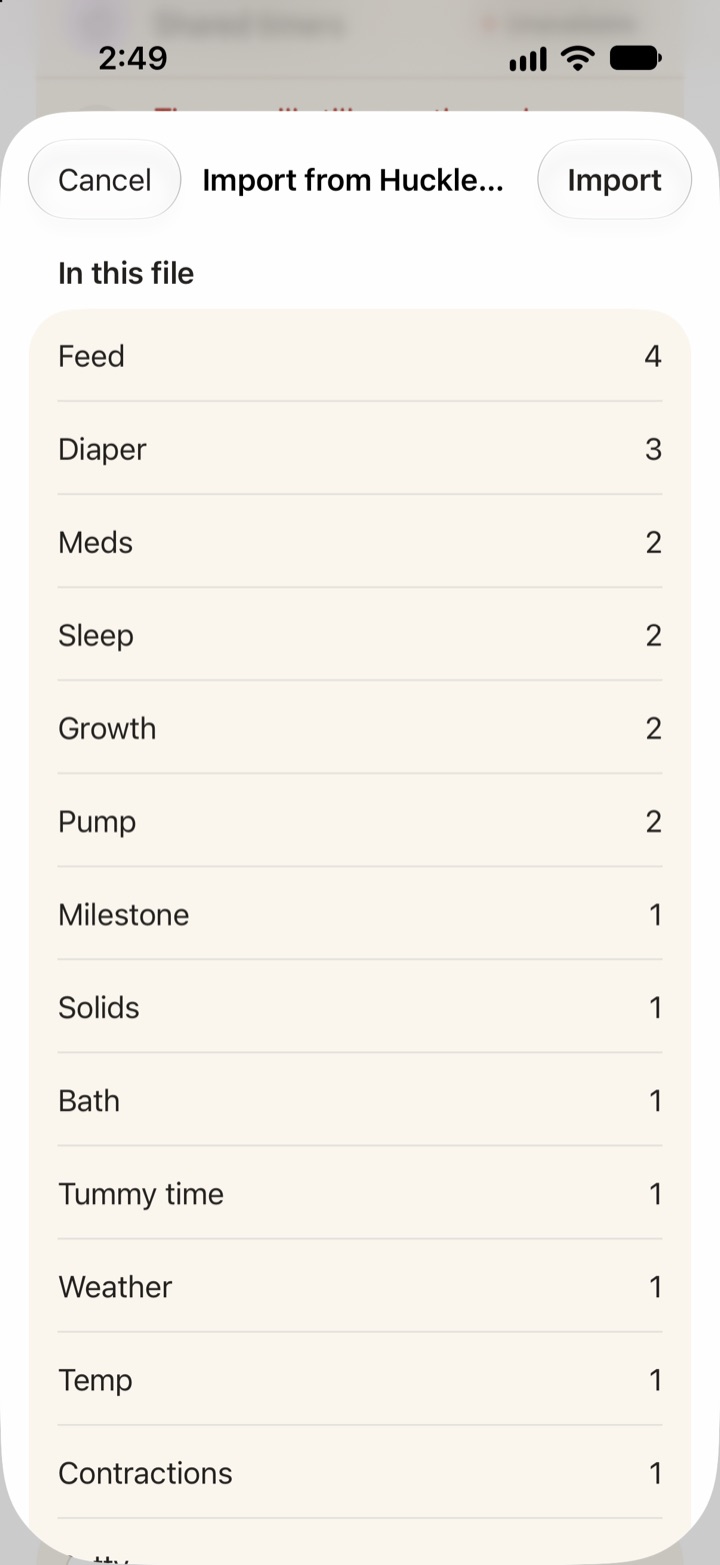
Before Vivi writes anything, it shows how many entries of each type the file holds and the date range. A “Worth checking after import” list counts entries that look odd, for example a sleep with no end. Those entries still come in, and Vivi flags them in History so you can fix them.
What comes across
Vivi imports sleep, breastfeeding, bottle feeds, solids, diapers, pumping, growth, medicine, temperature and milestones. Potty entries become a “Potty” routine, and activities such as tummy time and bath become routines too. When Vivi has no field for a value, such as diaper size, it keeps the value in the entry’s note so it isn’t lost. Rows with a type Vivi does not support are skipped.
Duplicates and running it again
- Importing the same file twice does not create copies.
- You can import a newer export later. New entries are added and the ones you already have are recognized.
- If you logged in both apps for a while, Vivi spots likely duplicates of entries already in Vivi and skips them by default.
After the import, the family folder holds a copy of the file and the full list of flagged entries under imports/huckleberry.
If you’re not switching (keep a backup)
The export is worth doing even if you are happy with Huckleberry. A CSV is a plain file. It opens in any spreadsheet app and does not depend on an account or a subscription.
- Export each child every few months, and keep the latest file in iCloud Drive or another place you back up.
- Export once more before you delete a child profile or your account. Huckleberry says a deleted child profile cannot be recovered.
- If your pediatrician asks about feeds or sleep over the past few weeks, a spreadsheet is easy to filter and print.
What Vivi Baby offers if you switch
Logging is free in Vivi Baby, and so are History, Trends, sharing with caregivers, the Apple Watch app, widgets, and import and export. No account is needed. Your baby’s log is stored as plain files in your family’s own iCloud Drive, an idea borrowed from Obsidian, and it is not uploaded to Vivi’s servers. One exception: a small relay run by Vivi carries anonymous timer state so a running timer shows on other devices. More on that in our page on private baby trackers.
Three advanced features are in Vivi Plus, at $4.99 per month or $44.99 per year with a 14-day free trial:
- Checkups gathers growth, medical notes, recent stats and your questions before a pediatrician visit.
- Sleepy Time (nap prediction) estimates the next nap and bedtime.
- Insights spots patterns in what you log and compares them with WHO, CDC and AAP guidance, with a link to each source.
The full terms are on the Vivi Baby pricing page. To compare the two apps side by side, read Vivi Baby vs Huckleberry. If you are weighing whether to keep paying, see what Huckleberry costs. Huckleberry has things Vivi does not, such as custom sleep plans and the Berry chat on its Premium plan. Our list of Huckleberry alternatives covers other apps too.
Moving from other apps
Vivi Baby also reads exports from two other trackers:
- Baby Tracker by Nighp: how to export Baby Tracker data.
- Nara Baby: how to export Nara Baby data and switch.
The steps follow the same pattern: export from the old app, save the file, then import it from Preferences.
Frequently asked questions
How do I export my data from Huckleberry?
In the Huckleberry app, tap the child profile icon in the menu bar, scroll down and tap Export tracking data as CSV, then tap Got it! Email it. Huckleberry emails a download link to the address on your account.
How long does the Huckleberry export link work?
Huckleberry says the link is valid for 24 hours, for security reasons. If it expires, you can request a new link from the app the same way.
Can I export all my children in one Huckleberry file?
No. Huckleberry's help center says you can export a CSV for each child profile in your account. Repeat the export for each child and keep the files apart.
Do I need a paid Huckleberry plan to export my data?
Huckleberry's export article does not mention a plan. Its help center also says that if you cancel a subscription, your account and logged data stay, and the free trackers keep working.
Can I import a Huckleberry CSV into another app?
Yes, into Vivi Baby for iPhone. It reads one child's Huckleberry CSV at a time and asks for the child, the time zone and the parent for pumping, since the file does not include them. Huckleberry's help center says it does not support importing data into Huckleberry.
Should I export before I delete my Huckleberry account?
Yes. Huckleberry says account deletion is permanent and it cannot restore your data afterwards, and it recommends exporting each child's data first.
Sources
- Huckleberry help: Can I export my data from the app?
- Huckleberry help: What happens to my data if I cancel my subscription?
- Huckleberry help: How can I delete or close my account?
- Huckleberry help: How do I edit or delete a child profile?
- Huckleberry pricing
Details about other apps come from their own websites and app listings, and they change often. Found a mistake? Write to support@vivibaby.app and we will fix it.