
Baby Tracker Widgets and Lock Screen Timers
Vivi Baby has two Home Screen widgets, Lock Screen widgets, Live Activities with Dynamic Island views for running timers, and 22 Siri phrases for 10 actions. All are free and need iOS 18 or later. The only parts that need Vivi Plus are the ones that show the next nap. Vivi has no Control Center controls.
This page lists each one, so you can check before you pick an app. It describes what Vivi Baby does today.
What Vivi offers at a glance
| Feature | What it does | Free or Plus |
|---|---|---|
| Since last widget | Time since the last feed, sleep and diaper | Free |
| Sleep timer widget | Shows a running timer, starts and stops sleep | Free |
| Lock Screen widgets | Since last and Sleep timer in small Lock Screen shapes | Free |
| Timer Live Activity | Lock Screen and Dynamic Island view of a running timer | Free |
| Next-nap Live Activity | Countdown to the next nap or bedtime estimate | Plus |
| Siri and Shortcuts | Log and time entries by voice | Free, except the next nap answer |
| Watch complication | An icon that opens the Watch app | Free |
| Control Center controls | None | Not offered |
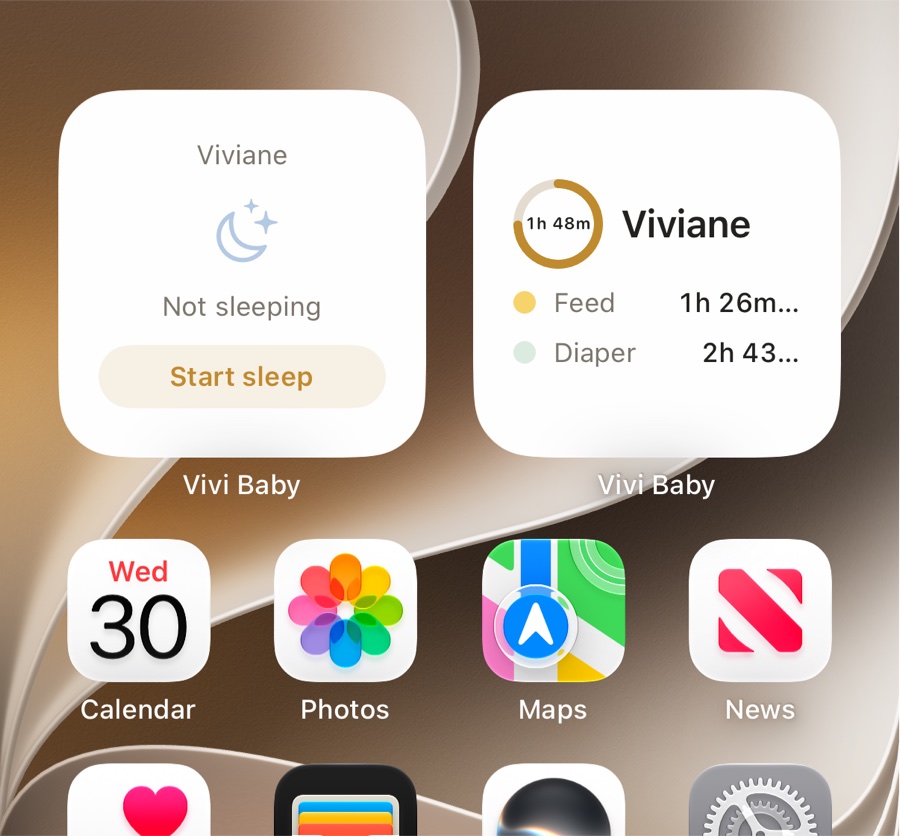
Home Screen widgets
Vivi has two Home Screen widgets. You add them from the iPhone widget gallery like any other widget.
The Since last widget shows how long ago the baby last fed, slept and had a diaper change. It comes in small and medium.
- Small: the child’s name, the Feed and Diaper rows, and a small ring with the time asleep or awake. The ring is the same one as on the Today screen.
- Medium: Feed, Sleep and Diaper rows, and a fourth row for Pump. The Feed row also shows the last breastfeeding side, and the Diaper row shows the last diaper type.
- If a timer is running, a small label such as “Sleeping” or “Feeding” appears next to the child’s name.
The widget’s timeline has a new entry every 15 minutes. It shows relative times, so this is enough. Tap it to open that child in the app.
The Sleep timer widget comes in small. When no timer runs, it shows “Not sleeping” and a Start sleep button. When a timer runs, it shows the timer type and a live clock, and a Stop button if the timer is a sleep timer. The buttons work without opening the app. The entry is saved in the same file the app would write.
Both widgets show one child at a time: the child you selected in the app.
Lock Screen widgets
Two of the widgets also come in Lock Screen shapes.
- Since last, rectangular: the child’s name, time since the last feed, and time since the last diaper.
- Sleep timer, circular: a running clock, or a moon icon when no timer runs.
- Sleep timer, rectangular: the child’s name and a running clock, or “No timer running”.
Lock Screen widgets show information only. To start or stop a timer, use the small Home Screen Sleep timer widget, a Live Activity button, or Siri.
Live Activities and the Dynamic Island
A Live Activity is a card on the Lock Screen and in the Dynamic Island. It stays while something runs. Vivi starts one for these timers:
- Sleep
- Breastfeeding
- Pumping
- Combo feeding (breast and bottle together)
The Lock Screen card shows the timer type, the child’s name, a live clock and a Stop button. If a timer started on another device, the card can say “Family timer” in place of the name. The Dynamic Island has compact, minimal and expanded views. In the expanded view, a breastfeeding timer also has a Switch to left or Switch to right button. The clock counts on its own, so it keeps running when the app is closed.
The Dynamic Island exists only on iPhones that have it. On other iPhones you get the Lock Screen card.
You turn this on or off for each child in the child’s settings, under “Live Activity while timers run”. The timer Live Activity is free.
A Live Activity also has a smaller layout for the Apple Watch Smart Stack, so a running timer can show on a paired Watch. iOS and watchOS decide when to show it.
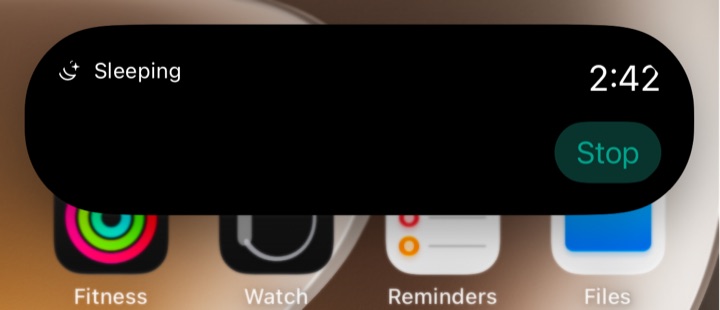
Each phone starts its own Live Activity. For a timer that another caregiver starts, a small relay run by Vivi can send a push that starts the Live Activity on your phone. The relay carries anonymous timer state, not names or your baby’s log. Apple decides when the push arrives, so it can lag. If you split night feeds, this guide for partners explains how sharing works.
Next-nap Live Activity (Plus)
While the baby is awake, Vivi can show a countdown to the next nap estimate or the bedtime estimate on the Lock Screen and in the Dynamic Island. After the estimated time passes, it goes stale and says so.
It starts without opening the app when you stop a sleep with Siri, a Shortcuts action, the Home Screen Sleep timer widget or the Stop button on the sleep Live Activity. Starting a sleep ends it. A stop from the Apple Watch cannot start it, so it starts the next time you open the app. This needs Vivi Plus, because the estimate comes from Sleepy Time. Turn it on per child with “Next nap on Lock Screen”. Without Plus, that row is locked. It is an estimate and not a promise; see how Sleepy Time estimates work.
Vivi Plus costs $4.99 per month or $44.99 per year, with a 14-day free trial. See pricing for the terms.
What free devices do not show
Widgets, Siri and the Watch cannot ask the App Store for your subscription. Vivi saves the Plus status on the device, and the app leaves the prediction out of its data when Plus is off. So a free device shows no prediction in any widget, Live Activity, Siri answer or Watch screen. You will not see a teaser there either.
In the medium Since last widget, the Sleepy Time row appears only with Plus. Otherwise that row shows Pump. In the Lock Screen rectangular version, the Sleepy Time line replaces the Diaper line with Plus.
Siri and Shortcuts
Vivi’s phrases work without setup. Say “Vivi Baby” as the app name. Siri asks for details it needs, such as the diaper type, the breastfeeding side or the bottle amount. With no child chosen, Vivi uses the child selected in the app. In the Shortcuts app you can pick a child.
| Say | What happens |
|---|---|
| “Log a diaper in Vivi Baby” or “Record a diaper change in Vivi Baby” | Logs a diaper |
| “Start sleep in Vivi Baby”, “Vivi Baby start sleep” or “Baby is asleep in Vivi Baby” | Starts a sleep timer |
| “Stop sleep in Vivi Baby”, “Vivi Baby stop sleep” or “Baby is awake in Vivi Baby” | Stops the sleep timer |
| “Start breastfeeding in Vivi Baby” or “Vivi Baby start feeding” | Starts a breastfeeding timer |
| “Stop feeding in Vivi Baby” or “Vivi Baby stop feeding” | Stops the feeding timer |
| “Log a bottle in Vivi Baby” | Logs a bottle |
| “Start pumping in Vivi Baby” | Starts a pump timer |
| “When was the last feed in Vivi Baby” or “Vivi Baby last feed” | Says when the last feed was |
| “How long has my baby been sleeping in Vivi Baby”, “How long has the baby been asleep in Vivi Baby” or “Vivi Baby how long asleep” | Says how long the sleep has run |
| “When is the next nap in Vivi Baby”, “When is my baby’s next nap in Vivi Baby” or “Vivi Baby next nap” | Says the next nap estimate (Plus) |
The sleep phrases avoid the word “timer” on purpose. Siri took “start a sleep timer” for a Clock timer.
Vivi has more actions in the Shortcuts app than phrases: log a routine, start or stop sleep with one action, switch breastfeeding side, pause or resume a feed, and stop pumping. You can put those in your own shortcut. The Siri and Shortcuts actions do not open the app and write the same file the app writes. Without Plus, the next nap phrase answers that Sleepy Time is part of Vivi Plus.
Apple Watch
Vivi’s Watch app needs watchOS 26 or later. On the watch face, Vivi has one complication: an icon that opens the Watch app. It comes as circular, corner and inline. It shows no baby data. Watch complications that show a timer or a since-last time are not offered yet.
For what the Watch app does, read the Vivi Apple Watch page and how to time sleep from your wrist.
iOS versions
Vivi supports iOS 18 and later. The widgets, the Live Activities (including the Watch Smart Stack layout) and the Siri phrases use Apple features that iOS 18 has, so the code does not limit them to a newer iOS. The Dynamic Island depends on your iPhone model, not on iOS. The Watch app needs watchOS 26. The bar above the tab bar that shows a running timer inside the app is a separate feature and needs iOS 26.1 or later. It is not a widget.
How other apps handle widgets and Live Activities
This comes from each app’s own App Store listing, plus Huckleberry’s help centre, read on 2026-09-30. Listings change, so check the current one.
| App | Widgets | Live Activities | Siri | Watch | Complications |
|---|---|---|---|---|---|
| Vivi Baby | Home Screen and Lock Screen | Yes, plus Dynamic Island | Yes | Yes (watchOS 26) | Icon that opens the app |
| Huckleberry | Home Screen widgets for SweetSpot, sleep, feeding, diapers, pumping and solids; none on the Lock Screen (Plus or Premium) | Yes: sleep and nursing timers, SweetSpot and last feed, with Dynamic Island (Plus or Premium) | Yes | Yes (watchOS 10.2; Plus or Premium) | Not listed |
| Nara Baby | Home Screen widgets | Yes: sleep, pump, breast and combo timers, with Dynamic Island | Yes | Yes (watchOS 8.1) | Not listed |
| Baby Tracker by Nighp | Home Screen and Lock Screen, and What’s Next widgets | Yes | Siri Shortcuts | Yes (watchOS 10) | Not listed |
| Talli | Not listed | Not listed | Not listed | Not listed | Not listed |
Huckleberry’s help centre says its widgets live on the Home Screen, and that Lock Screen access comes from Live Activities, which need iOS 16.1 or later and work offline. Nara Baby’s listing names the same four timer types for Live Activities and says they are shared across caregivers in real time. It also lists Siri for more actions, but says Siri needs an internet connection. Nara isn’t free anymore: after a 7-day trial it costs $9.99 a month or $99.99 lifetime, and without a plan you can only view and export. Here is what Nara Baby costs and what the trial covers. The Nighp listing mentions What’s Next widgets with cues, which Vivi does not have. All three apps list an Apple Watch app for an older watchOS than Vivi’s watchOS 26, so they suit an older Watch. For a full comparison, see Vivi and Baby Tracker. If you are leaving that app, see the Baby Tracker alternatives for iPhone.
Each listing gives less detail than Vivi’s code does, so “Not listed” means the listing does not say. It does not mean the app lacks the feature.
Limits
- No Control Center controls.
- Widgets show one child, the selected child.
- The Since last widget gets a new entry about every 15 minutes.
- The Watch complication is an icon only.
- Timers from another caregiver can lag on your Lock Screen, because Apple delivers the push.
- The estimate items need Vivi Plus. Vivi Plus does not change any other item here.
Frequently asked questions
Does Vivi Baby have Home Screen widgets?
Yes. Vivi has a Since last widget (small and medium) and a Sleep timer widget (small). Both are free and both need iOS 18 or later, like the rest of the app.
Can I stop a sleep timer from the Lock Screen?
Yes. A running timer's Live Activity has a Stop button on the Lock Screen, and the small Home Screen Sleep timer widget has Start sleep and Stop buttons. Neither opens the app. The Lock Screen widget shapes only show information.
Does Vivi Baby have Control Center controls?
No. Vivi has no Control Center controls today. Use the Lock Screen widgets, the Live Activity buttons, Siri or a Shortcut instead.
Do Vivi widgets show the next nap for free?
No. The next nap time comes from Sleepy Time, which is part of Vivi Plus. Without Plus, widgets, Live Activities, Siri and the Watch show no prediction. They still show time since the last feed, sleep and diaper.
Does Vivi Baby have Apple Watch complications?
It has one complication, an icon that opens the Watch app. It comes in circular, corner and inline shapes. It does not show baby data yet.
What Siri phrases work with Vivi Baby?
For example: "Log a diaper in Vivi Baby", "Start sleep in Vivi Baby", "Stop feeding in Vivi Baby" and "When was the last feed in Vivi Baby". The full list is on this page.